


|
Navigation
Recherche
|
10 simple steps to speed up your iPhone
mardi 2 décembre 2025, 09:57 , par Mac 911
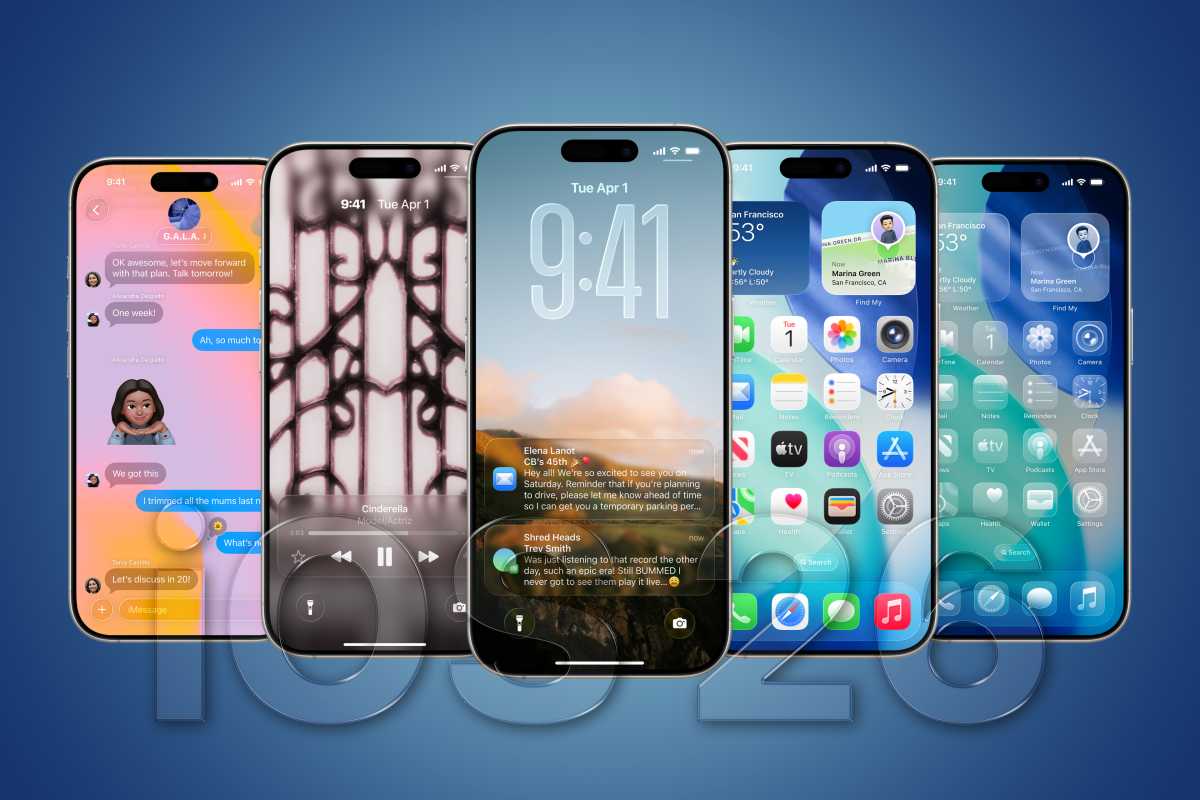
Have you ever wondered if your iPhone is getting slower, or if it’s just your imagination? Have you ever wished there was some way to speed it up? If the answer to either question is yes, then you’re not alone. iPhones absolutely do get slower with age. The issue is often caused by a lot of junk files and not enough free space, as well as outdated software and unnecessary processes running in the background. So before splashing out on an expensive new device, it’s worth doing your best to solve those issues. Can you make your iPhone run faster? Yes. Whatever has made your phone slow down, there’s a solution. And in this article we show how to get it back up to speed. Step 1: Update iOS At time of writing Apple’s current operating system for the iPhone is iOS 26. From time to time there will be small ‘point’ updates (iOS 26.0.1, iOS 26.1 and so on) while the next major new version (iOS 27) will be here in September 2026. If you haven’t got the latest version of iOS, whatever that is when you read this, you may want to update. You can check by opening the Settings app on your iPhone and going to General > Software Update. This screen will let you know if there’s an update waiting for you to install, and guide you through the process of installing it. For more details, check out our complete guide to updating iOS. You may find you can’t run the latest version of iOS, but at least install the latest version of iOS for your iPhone. Updating to the latest version of iOS will often fix issues with your iPhone, because it will give you access to the latest patches and fixes for known problems. It’s almost always a good idea to install the latest point update for this reason. If you’re on iOS 26.1 and iOS 26.1.1 becomes available, grab it. It might make your iPhone a little faster, and it’s extremely unlikely to make it any slower. Larger updates (iOS 27, iOS 28, and so on) are a more complicated case. They don’t just add patches; they also add visual tweaks and new features, all of which are designed for the latest hardware and can be overwhelming for older models. They may also take up more space on your device, which is a whole other problem we discuss later in this article. You can also experience slow downs for the first few days after a larger update because Spotlight reindexes your iPhone, so if that matches your experience right now, that’s probably the reason. Apple is supposed to address this by only allowing iPhones which are capable of handling an update to install it: you’ll find the list of supported devices for each version of iOS in our iOS compatibility checker. The ultra-cautious approach would be to only install a yearly update if your iPhone is comfortably inside the compatible zone. iOS 26, for instance, is supported by the iPhone 11 and later, but that doesn’t mean the iPhone 11 will deliver optimal performance. The safe bet would be to stay on the previous version (iOS 18; there was a change to the numbering system!) unless you’ve got an iPhone 12 or later. iOS 26 looks amazing, but it may be too demanding for older iPhones.Foundry Step 2: Restart your iPhone A common first piece of advice is to close down unused apps–and if it comforts you to do so, swipe up from the bottom of the screen (or double-press the Home button, if you’re using an older device that still has one) and swipe upwards on non-essential apps to close them. But this strategy has long been debunked, by Daring Fireball, Apple itself, and many others. Instead, let’s restart the iPhone completely. Press volume up, then volume down, then press and hold the power button on the righthand side. (If there are two buttons on the right of your iPhone, press the upper one. The lower one will be Camera Control.) You’ll then see the Power Off slider; swipe across this to restart your iPhone. (Again, if you’ve got an older model with a Home button, the method is a little different. You simply have to press and hold the power button on the top or righthand edge until the Power Off slider appears.) Once your iPhone has finished shutting down, which will take 10 seconds or so, start it up again by pressing and holding the power/sleep button for about 5 seconds. You’ll see the Apple icon, then the iPhone will restart. You shouldn’t have to do this very often, but when you do it’ll clear out the memory and can often fix unruly apps. The occasional power cycle helps keep iOS ticking over. Step 3: Kill automatic background processes The next step is to turn on Low Data Mode. This means apps won’t use data in the background, there won’t be any automatic app downloads, and emails won’t be automatically retrieved. As well as saving you data, this can also speed up your iPhone and improve battery life. To turn on Low Data Mode, open the Settings app and select Cellular > Cellular Data Options and tap the toggle labeled Low Data Mode. (You may also have to tap Data Mode before you get to the toggle, depending on your data plan. And readers in the U.K. will instead follow the Settings path Mobile Service > Mobile Data Options > [Data Mode] > Low Data Mode.) You can also turn off these data-hogging processes in Wi-Fi. Open Settings and select Wi-Fi. Tap the i next to the network you wish to limit, and choose Low Data Mode. Step 4: Turn down the graphics and visual effects Dialling down the fancy visual effects can help to improve performance. Start by turning off Motion. Open Settings and go to Accessibility > Motion and tap the toggle next to Reduce Motion. This turns off the parallax effect on icons. Some people have complained that this effect makes them feel seasick, so you might even find the phone easier to use in this setting (although it will probably take some time to get used to). And of course, it will also use less power. iOS feels different with Reduce Motion enabled, but it may be worth it. David Price / Foundry Next you can reduce the see-through background effects which can also slow things down. In Settings, select Accessibility > Display & Text Size and then turn on Reduce Transparency. Similarly, if you’re running iOS 26 or later, you may want to tone down Liquid Glass, whose visual effects can make the interface confusing as well as increasing the drain on your phone’s processor and memory. Open Settings and go to Display & Brightness > Liquid Glass and change the toggle from Clear to Tinted. Keep an eye on this page; more Liquid Glass toggles may appear here in the future. Step 5: Clear cookies and data in Safari Next you should try emptying Safari’s cookies and data to free up some memory. Open the Settings app and select Apps, then use the alphabetic selector to find Safari. Scroll down to the section headed History and Website Data, then tap Clear History and Website Data. iOS will ask how much history you’d like to delete; the most effective option is All history. Bear in mind that this action may make browsing the web slightly less convenient for a while. Safari will forget the URLs you’ve been visiting so won’t suggest them as you type, unless they’re bookmarked (although it will start remembering new ones from now on). And clearing data may mean some websites forget your preferences. Step 6: Free up space on your iPhone If you’re running out of space on your iPhone, this could account for the sluggishness. Your device will tend to run better if it has at least 10GB free, or around 10% of the available storage. To find out just how much storage you’re wasting, open the Settings app and go to General > iPhone Storage. You’ll see how much space is left on your iPhone and what apps and files are using the most. There are various ways to free up space, such as deleting photos and music, or offloading data to iCloud. But we’ll start with deleting apps. Delete unwanted apps Identify apps worth deleting by going to the iPhone Storage page mentioned above; by default your apps will be listed in order of the space they take up, although you can tap the dropdown menu to filter them by name or date last used instead. Hunt out apps that are big, or you don’t use very often, or both. And remember that once you own an app you can download it again for free at a later date. Once you’ve decided what needs to go, tap on the app in the list, then choose Offload App (if you want to hang on to any documents and data) or Delete App (if you just want to get rid of it). You can also delete apps from your Home Screen by pressing and holding the app icon and selecting Remove App, but it’s probably simpler to do it from Settings. David Price / Foundry iOS will also offer specific recommendations. In the screenshot above, for example, you can see the option to save 26.86GB by deleting photos and videos, or 83.4GB by offloading unused apps. Delete messages Messages can take up a considerable amount of space, especially if you send and receive a lot of images. One option is to sync Messages to iCloud. Open Settings and tap on your Apple ID at the top, then select iCloud > Messages, and tap the slider next to Use on this iPhone so it turns green. With this setting turned on your Messages will be stored in iCloud rather than on your phone. You’ll need to pay for iCloud storage to reap the benefits of this option. If you don’t want to pay to store your Messages in iCloud, you can delete them from your iPhone quite easily. Start by opening Messages and scrolling down to find any message threads that you can manage without. Swipe to the left and tap the red trashcan icon, then hit Delete (or Delete and Block/Delete and Report Spam if either is relevant). Or, if you swipe all the way left until the trashcan icon expands, you can do this with fewer taps. Pro tip! David Price / Foundry Deleting threads with only text-based messages won’t free up much space, so it’s worth concentrating on those that include images, videos and voice notes. If you have a friend who sends you a lot of pictures, but you don’t want to delete the whole conversation, there’s an easy way to quickly and selectively delete a few images. Open their message, tap their name at the top of the screen, then select Photos. You’ll see all the images exchanged between you in a convenient list. You can then either press and hold on individual images and hit Delete, or select Edit at the top right, followed by Select Photos. Tap the photos you don’t want, then hit the trashcan icon at the bottom right. Finally, if you’re sent a lot of audio messages, make sure iOS knows to delete them after you’ve listened to them. Open the Settings app, navigate to Apps > Messages, scroll down to the section headed Audio Messages, and tap Expire. Check this is set to After 2 Minutes rather than Never. That’s two minutes after they’re opened, not after they’re sent, so don’t worry about rushing to listen before they vanish forever. Delete music These days many of us stream music using a service such as Spotify or Apple Music. (Apple Music costs $10.99/£10.99 a month, and gives you access to a library of more than 100 million songs wherever you have internet access.) But if you’ve got a lot of tracks stored on your phone, whether they’re temporarily borrowed from a streaming service or sourced from elsewhere, that could be contributing to a lack of free space, and therefore a lack of speed. Open the Settings app and go to Apps > Music, swipe down to the section headed Downloads and tap Downloaded Music. You’ll see all your tunes arranged by artist, together with the number of albums and the storage allocation taken up by each. To delete an entire artist’s worth of music, swipe left across their name and hit Delete; or tap their name to go in and delete individual albums or tracks. Delete photos Again, the temptation is to throw money at the problem. The simplest way to free up space on your phone is to pay for a decent chunk of iCloud storage and turn on the iCloud Photos feature: open Settings and go to Apps > Photos and tap the toggle labelled iCloud Photos. This means all the photos from all your Apple devices will be stored together in the cloud, and you’ll be able to see thumbnails on all your devices. The full-res version won’t be stored on your iPhone, unless you choose to download it, which means you’ll save lots of space. The size of your photo library on your iPhone will be significantly smaller if you store the high res images in the cloud, but expect that it will still take up a lot of space on your device if you have a lot of photos. If you want to reduce the space given to your photos you will still need to delete some. However, if you don’t want to pay to store your photos in iCloud, you could back up your photos on your Mac and then delete them from your iPhone. The easiest way to do this is to plug your iPhone into your Mac, open Photos, and then import your iPhone photos. To delete photos on the phone, open the Photos app, hit Select and then tap on the images you want to delete. Then tap the trashcan icon and confirm. If you want to enjoy the extra space right away, you’ll need to go to the Recently Deleted folder (go to Collections, scroll down to the section headed Utilities, then tap Recently Deleted) to actually delete the images, as Apple will otherwise keep them on your phone for 30 days just in case you change your mind. Here’s one last tip: if you take a lot of screenshots on your iPhone, find the screenshots album (you’ll find it under Collections > Media Types) and delete them there. Screenshots are unlikely to be wanted in the long term. It’s also worth targeting any Burst photos you’ve taken: you may have ended up with 14 pictures because you kept the shutter pressed too long. Delete these for easy space gains. Video also takes up a lot of space, so look at your album of videos and delete those you don’t want. Step 7: Check for throttling Back in 2017, Apple added a controversial iOS function to automatically throttle the performance of iPhones with ageing batteries in order to prolong their life and “prevent the device from unexpectedly shutting down.” The company later made it possible to turn this off, and if your phone is slow (and particularly if it’s on the older side) it’s worth checking to see if this is an option. Just bear in mind that any speed increases may come at the cost of reliability. If you’re running iOS 18 or earlier, open the Settings app and go to Battery > Battery Health & Charging and look for a reference to performance. If it says Peak Performance Capability, everything is running normally. If it says Below Peak Performance, throttling is being applied to slow down your phone: tap the Disable button to turn this off. Those on iOS 26 or later will see different options because the function was changed and rebranded as Adaptive Power. Open Settings and go to Battery > Power Mode. Tap the toggle labelled Adaptive Power so it turns gray. This should ensure any system throttling is switched off. Adaptive Power may slow down performance slightly.David Price / Foundry Again, bear in mind that these functions are supposed to be there for your protection. A better solution would therefore be to ensure your battery is in optimal health so throttling isn’t necessary; that way you’ll get both performance and reliability. We have a separate article that shows you how to check your iPhone battery and find out if it needs to be replaced. Step 8: Restore to factory settings We’re getting into drastic solutions now. We’re going to perform a full restore, which deletes all the data on the iPhone and returns it, in effect, to the state it was in when you bought it. (Except that the hardware components will still have suffered a number of years of wear and tear, of course.) Since we’re deleting all the data, you should back up the iPhone first. Then you can restore the iPhone to its factory settings by opening Settings and going to General > Transfer or Reset iPhone > Erase All Content and Settings. You’ll then have to enter your passcode and confirm. After a few minutes, you’ll be presented with the welcome screen you saw when you first started up the iPhone. You can now restore from the backup you made and see if the speed problems have gone away. If they persist, it’s possible the issue was caused by something on you phone that you’ve now reintroduced, so as a last resort try erasing everything once more and this time set up from scratch, rather than using the backup. Step 9: Ask Apple for help If none of the above techniques work, you can ask Apple for help. Just bear in mind that there may not be an easy (or cheap) solution. As we mentioned earlier, slowness can be a matter of perception. But if you’re sure something’s up, and you’ve tried all our tricks, you may wish to ask Apple to check for a faulty component or other hardware issue. (This may be covered by your Apple warranty if you’ve got one.) Read our article on booking an appointment with Apple for the details. Step 10: Buy a new iPhone If Apple can’t help, or the company’s help is too expensive to be worth it, we reach the final option: give up on your older iPhone and buy something new(er). If you’ve reached that point, check out our iPhone buying guide to help figure out the best iPhone for you. Then read about the best iPhone deals to make sure you’re paying the lowest price.
https://www.macworld.com/article/670661/how-to-speed-up-an-phone.html
Voir aussi
|

59 sources (15 en français)
Date Actuelle
mar. 23 déc. - 13:11 CET
|
 Lire la suite sur Mac 911


