


|
Navigation
Recherche
|
Unleash your iPhone’s Action button with these 7 creative shortcuts
mercredi 10 décembre 2025, 13:15 , par Mac 911
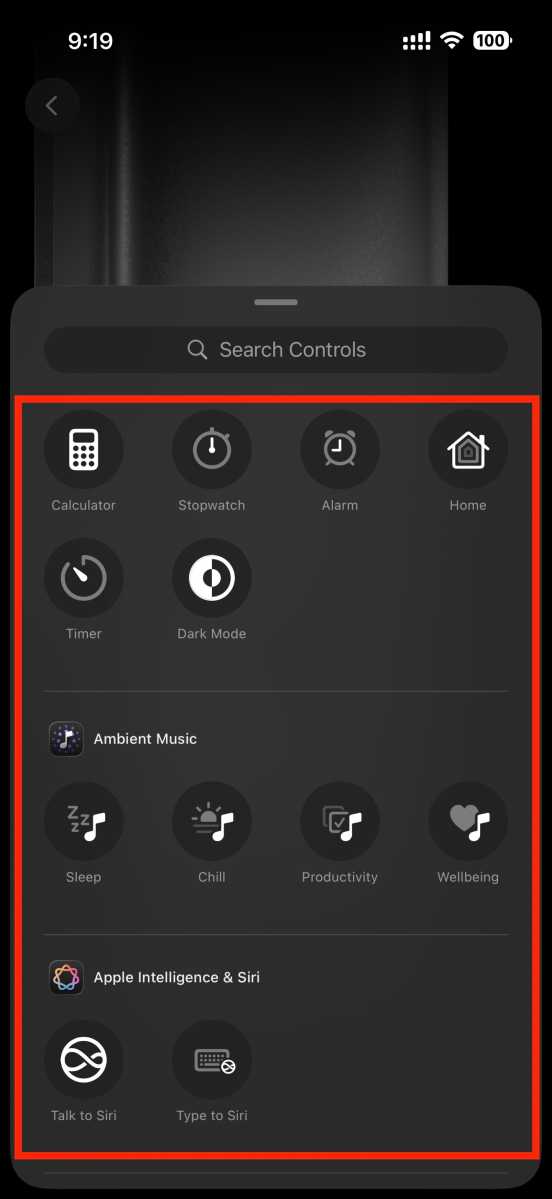
When Apple introduced the iPhone 15 Pro, it retired the classic mute switch which had been part of the iPhone design since the very first model. These days, all iPhones feature a customizable Action button, which users can freely remap to various different actions. Some of the default actions include muting the iPhone, toggling a Focus mode, launching the Camera app, recognizing a song, recording audio, and translating speech. While these actions are sufficient for many users, the pros may find them lackluster. Fortunately, iOS supports deeper customizations through Apple’s Shortcuts app, allowing the Action button to perform a practically infinite number of tasks. Once you understand the logic behind the feature, you should be able to build and assign any desired shortcut. Generic Control Center toggles If you find the built-in Shortcuts app too complex, you can settle for Control Center toggles instead. While not as flexible, they include some useful first- and third-party functions you can assign to the Action button, beyond Apple’s default suggestions. This is a good place to start.Mahmoud Itani / Foundry Simply head to the Action Button section in the Settings app and scroll horizontally to reach the Controls option. Tap on Choose a Control to view a full list of available toggles you can use with the Action button. Some of the popular actions include toggling Dark mode, playing ambient music, starting a Quick Note, and launching the Calculator. Depending on the apps you’ve installed, you’ll also find other actions provided by third-party developers. Once you’ve chosen a toggle, iOS will complete the desired task whenever you push and hold the Action button. Summon AI assistants Siri is far from being a reliable virtual assistant, especially when it comes to maintaining longer conversations. Thankfully, you can assign a third-party AI assistant to the Action button to mimic Siri’s Side button shortcut. First, you’ll need to download the official Gemini app. (Or, if you’re not keen on Google’s AI, you can alternatively use the feature with other popular chatbot apps—like OpenAI’s ChatGPT.) Once installed and signed in, you’ll find new toggles in the Controls list mentioned in the previous section. Some of Gemini’s bundled shortcuts include typing a prompt, talking live, scanning with the camera, uploading a file, and more. Assign the functionality you typically rely on, and it’ll always be one Action button click away from initiation. Gemini is now only one click away.Mahmoud Itani / Foundry Unlock your car The Action button doesn’t necessarily have to control your iPhone. If you’ve got a newer car, chances are it offers a companion iOS app you can use to unlock, start, or adjust it. Many vehicle manufacturers have baked these capabilities into the built-in Shortcuts app, making them compatible with the Action button. Launch the Shortcuts app and tap on the plus (+) button to create a new shortcut. Scroll through the list of apps in the shortcut builder and locate your car’s companion app. Tap on it to view the available actions compatible with your model. Pick the one you need the most, then save the shortcut. This is where you create new shortcuts.Mahmoud Itani / Foundry Head to the Action Button section in the Settings app and scroll horizontally to find the Shortcut option. Tap on Choose a Shortcut, and pick the one you just created. Triggering the Action button will now control your car the way you’ve specified. Smart home switch Similarly, the Action button can control certain smart home products, such as lights, via the Shortcuts app. In the shortcut creation flow described above, locate the Home app. If you simply want to turn a light on or off, opt for the Toggle Accessory or Scene action and pick the relevant HomeKit bulb. For deeper controls, you can opt for the Control Home action instead, which, for example, lets you specify the color and intensity of the light, not just toggle it on or off. It’s like having a light switch on the side of your phone.Mahmoud Itani / Foundry Once you’ve completed setting up and saving the shortcut, you can assign it to the Action button as outlined in the previous section. Call your partner Remember the speed dial feature from the prehistoric Nokia phone era? You can replicate it using your iPhone’s Action button. To do so, create a new shortcut, pick Phone from the list of apps, and insert the Call action. Choose your partner’s contact card, save the shortcut, and assign it to the Action button. Et voilà! This is for illustrative purposes only. We don’t recommend creating a shortcut to your own number.Mahmoud Itani / Foundry Multiple actions Now, you may be thinking that some of these use cases are quite niche, and that it doesn’t make sense for them to occupy the Action button’s sole function slot. Luckily, there’s a workaround for this: the toolbox approach. Create a new shortcut, navigate to the Shortcuts app in the creation flow, and add the Run Shortcut action. In the action’s options, set the blank space to Ask Each Time. You can now head to the Action button’s settings again and assign the newly created shortcut. Whenever you trigger it, it’ll display a list of your other shortcuts, and you can tap on any of them to execute the needed task on the spot. As such, you can assign all of the above-mentioned shortcuts simultaneously to the Action button. With this option activated, you’ll be given the choice of multiple shortcuts.Mahmoud Itani / Foundry Conditional shortcuts While it works, the toolbox approach can be overwhelming if you’ve created a lot of shortcuts. What if there was a smarter way to incorporate multiple tasks into the Action button, without having to manually pick a shortcut from the all-encompassing list? When you’re outdoors, for example, you likely won’t need to access your smart home shortcuts. With conditional shortcuts, you can program the Action button to react to your location and proceed with a specific task accordingly. Create a new shortcut, then search for and add the Get current location action. Add the If action, change the default Latitude selection to Street, and type your home street name in the blank space at the end. Add a Run Shortcut action under the If action, and select the smart home shortcut you created earlier. If you usually call your partner when you’re away from home, add another Run Shortcut action under Otherwise, and select the speed dial shortcut. When done, assign the conditional shortcut to the Action button. This is a simple example of a conditional shortcut. They can get way more complicated.Mahmoud Itani / Foundry Now, when you trigger the Action button, it’ll first check your current location using your iPhone’s GPS. If the street you’re currently at matches your home address, it’ll automatically toggle your smart home appliance. If not, it’ll proceed with calling your partner. This is just one basic example of how powerful conditional shortcuts can be. You can create if statements that detect your current activity for running-related shortcuts. Similarly, you can set the Action button to perform specific tasks depending on the app you have in the foreground, the phone’s orientation, the battery level, or other factors. You even nest multiple if statements to create a comprehensive shortcut that adapts to everything you do. It may take you some time to get there, but it’s technically possible.
https://www.macworld.com/article/2953623/unleash-your-iphones-action-button-with-these-7-creative-sh...
Voir aussi
|

59 sources (15 en français)
Date Actuelle
mar. 30 déc. - 18:11 CET
|
 Lire la suite sur Mac 911


