


|
Navigation
Recherche
|
7 Android launchers for enhanced efficiency
jeudi 18 décembre 2025, 12:00 , par ComputerWorld
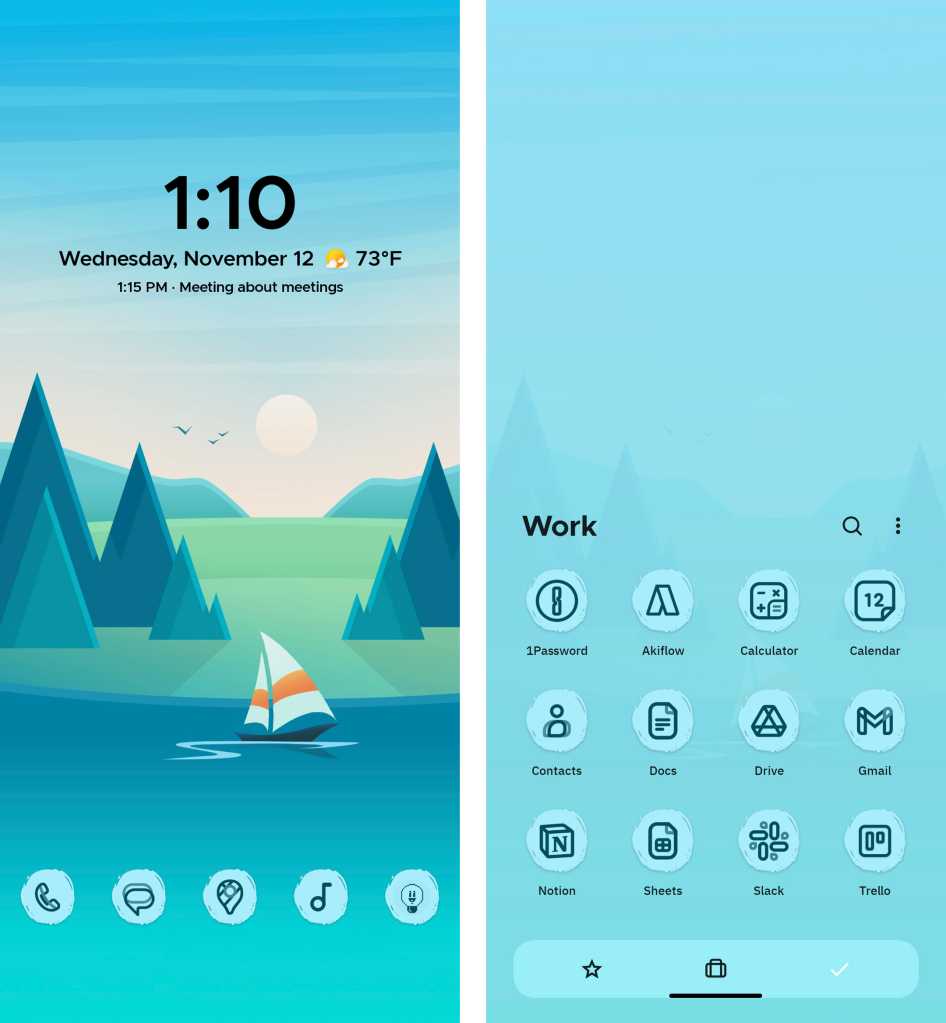
We’re not just talkin’ about sprinkling a few exceptional widgets into the mix, either. With Android, you can install a completely new home screen launcher that lets you incorporate all sorts of custom actions, interfaces, and shortcuts into your device’s desktop — giving your phone a different look and feel and creating a system that’s custom-tailored to the way you like to get things done. It can make a current phone infinitely more useful and make any old Android device feel fresh and new again. The Google Play Store has plenty of commendable launcher options to consider, and figuring out which makes the most sense for you ultimately comes down to deciding what exactly you want to accomplish and what style of interaction you prefer. After spending time with all the top contenders, these are the Android launchers I’d recommend for serious professionals — broken down by what type of experience they offer and in what areas they excel. 1. Smart Launcher: Complete customization With long-time Android power-user favorite Nova Launcher now seemingly on life support, the throne is open and awaiting a new holder for the title of go-to general-purpose Android launcher champion. That honor, without question, is well on its way to a popular independent creation called Smart Launcher. For the moment, at least, Smart Launcher is the launcher to look at if you’re seeking out a relatively traditional Android home screen setup with oodles of extra options and opportunities for customization. Smart Launcher’s actually been around for some time now, but it’s struggled a bit to find its identity over the years. For a while, it positioned itself primarily around a specific distinctive layout and the idea of automated organization — an interesting approach, if inherently somewhat limited in the scope of its appeal. Now, with Nova out of the mix, Smart Launcher is seamlessly stepping into the role of customization king. The app serves as a flexible framework for any arrangement of shortcuts and widgets imaginable, with a massive menu of options and the ability to tweak all sorts of details about the way your home screen and app drawer work — if you’re so inspired. Smart Launcher gives you a flexible canvas for organizing your home screen — and app drawer — in practically any way you want. JR Raphael / Foundry The beauty of Smart Launcher, though, is that it’s really up to you to decide how deep you dive into geeky waters. If all you want is a fairly ordinary home screen with the ability to take total control over what’s on it — say, removing a permanently present widget or search bar that shows up on your phone’s standard home screen layout or arranging things in a way your stock setup doesn’t allow — Smart Launcher makes it simple to turn any such vision into reality. And it offers some interesting extras, too, like the ability to create stacked widgets where you can swipe from one widget to another within the same physical space — and an app drawer that automatically splits your apps into different categories like productivity, media, and travel. It lets you create a variety of custom gesture shortcuts, too — maybe double-tapping your home screen to fire up the excellent Smart Launcher universal search prompt, for instance, or opening specific apps or even pop-up widgets when you swipe in certain directions on the home screen or on different app icons. And if you’re using a foldable phone, Smart Launcher empowers you to create completely different custom home screen layouts for your device’s inner and outer display (though you certainly don’t have to get that ambitious or complex). Smart Launcher is free for its core features and perfectly pleasant to use in that state. Some of the more advanced extras — including the swipeable widget and pop-up widget abilities along with the option to edit the app drawer categories — require a Pro upgrade that’s available either for $21 as a lifetime upgrade or via a monthly or annual subscription (with prices varying based on both location and season). In short: If you want complete control over every element of your home screen environment — or you just want a relatively standard home screen setup with a variety of extra options and opportunities for customization — Smart Launcher is the place to start. 2. Niagara Launcher: Ergonomic efficiency Sometimes, the simplest solutions can be the most effective. That’s the idea behind Niagara Launcher, which works to strip away all the extraneous elements of an Android home screen and leave you only with fast and fuss-free tools to get where you need to go. The Niagara home screen revolves around a single vertical menu of your most-used apps, but there’s much more to it than initially meets the eye. First, any shortcut on the home screen can either act as a traditional one-tap shortcut to opening an app or serve as a way to pop up a supercharged folder with a combination of both apps and widgets inside it. From the simple vertical app menu (at left) to the supercharged folders (at right), Niagara’s home screen is all about simplicity and easy access to the items you need. JR Raphael / Foundry The top of the home screen, meanwhile, features a classy built-in info widget that can show you the current weather along with upcoming event info and even your phone’s current battery level. Tapping it pulls up a pop-up agenda panel with an even broader view of your agenda. When you want to find an app that isn’t on your home screen, you simply slide your finger up or down along the edge of your screen to move through Niagara’s scrolling app list and jump to whatever it is you need. In a nice ergonomic twist, you can swipe or tap the list from the left or the right side of your screen, even, making it convenient to access no matter how you hold your phone. Niagara has lots of other thoughtful efficiency-oriented features, including an option to show active notifications alongside an app’s icon on your home screen — even going as far as to let you interact with notifications and respond to messages or dismiss pending alerts right from that same area. It allows you to stack multiple Android widgets within your home screen’s topmost row for easily swipeable at-a-glance views of important info, too, and it gives you a smart search system that’s easily accessible with a single swipe upward anywhere on your home screen. If all of that isn’t enough, Niagara features some intelligent automatic optimizations for larger-screen Android devices — so if you’re using a tablet or a foldable, it’ll make especially effective use of all your extra screen space (though in a way that happens on its own, following the Niagara framework, as opposed to being an open canvas for your own creation à la Smart Launcher — for better or for worse, depending on your perspective). Niagara Launcher is free with an optional $14-a-year or $43 lifetime Pro upgrade that unlocks some of its more advanced options, including the built-in calendar and weather widgets. In short: If you’re willing to keep an open mind and allow yourself a few days to adapt to a new and very unconventional approach, you might just find Niagara’s clever method of organization to be exactly the efficiency-enhancing change you didn’t know you needed. 3. Microsoft Launcher: The Microsoft-lover’s dream Android is typically a Google-centric affair, but little by little, Microsoft has been creating its own sub-ecosystem right within the platform’s walls — and the centerpiece to that setup is the aptly named Microsoft Launcher. Having Microsoft Launcher on your phone really does make it feel like you’re using a Microsoft Android device instead of a Google Android product. Most prominently, the app’s feed-like panel gives you glanceable info from your Outlook calendar along with tasks from your inbox, a panel of recent Windows-synced Sticky Notes, and a list of recently accessed documents from your cloud-based Microsoft Office storage. It also defaults to Bing for search, though you can easily opt to change that to any other provider if you want. Microsoft Launcher puts Bing front and center and adds plenty of other Microsoft-centric touches to your home screen environment. JR Raphael / Foundry Microsoft-specific elements aside, the Microsoft Launcher is also just a nicely crafted take on the Android home screen interface, with a pleasant mix of tidy-looking simplicity and more advanced organizational options. The app is completely free to use. In short: If you work in Windows and want your phone to feel like an extension of that same ecosystem, Microsoft Launcher is the way to make it happen. 4. Square Home: Windows Phone meets Android For all of its Microsoft focus, the actual Microsoft Launcher has nothing to do with the company’s now-abandoned Windows Phone effort and the content-packed organizational system that platform established. For that, you’ll want to turn to Square Home, which picks up where Windows Phone left off and brings its distinctive tile-centric setup into the realm of Android. Even if you didn’t use Windows Phone, you might find Square Home to be a refreshing change that enhances your workflow. The launcher puts a series of customizable tiles on your home screen, each representing an app shortcut, a widget, or some other sort of action. You can even treat a tile as a three-dimensional cube and store related shortcuts on each side — say, Google Drive on the front, then Docs, Sheets, and other productivity apps on the inner sides — and then swipe the cube in any direction to access the associated items. Square Home has tons of options, including some that let you control exactly how your tiles appear — everything from the number of columns for the tiles to the size of icons and text within them and the color and style of backgrounds used for different blocks. It also allows you to create some potentially useful custom shortcuts beyond just the usual gestures. You can set certain actions to occur when your phone is set flat with its screen facing either up or down, for instance, or even when you shake your phone. Square Home transforms your home screen into a Windows-Phone-like environment, with plenty of advanced shortcuts and time-saving options. JR Raphael / Foundry Square Home is free with an optional $6 lifetime key or $2-a-year premium subscription for advanced features, options, and tile effects. In short: If you miss the old Windows Phone interface or just like the idea of keeping everything you need in front of you and neatly organized in a geometrical manner, Square Home is your Android home screen answer. 5. ReZ Launcher: Gesture power Taking interface inspiration from the past isn’t purely about nostalgia. Often, ideas are abandoned even when they have plenty of practical merit — as a result of broader business issues surrounding their creators or other such factors. That’s absolutely the case with a nifty Android home screen concept Nokia once introduced into Android, during its short-lived era as an Android up-and-comer. Nokia came up with the idea of a home screen that revolves around gestures — not just the typical swipe-this-way-or-that variety but a more intricate and intuitive system of actually scribbling specific letters onto your screen to find what you need. It’s a surprisingly swift and efficient way to fly around your phone, and the concept now lives on via a quirky off-the-beaten-path Android launcher called ReZ. With ReZ as your default Android launcher, you can simply use your finger to draw any letter anywhere on your home screen. ReZ will recognize it right away and show you all the apps and contacts that match. If you don’t see what you want immediately, you can keep scribbling more letters to narrow down the search. ReZ Launcher looks simple on the surface — but scribble a letter anywhere on its home screen, and you’ll see what makes it special. JR Raphael / Foundry Scribbling aside, ReZ gives you a swipeable widget at the top of its screen, with custom native widgets showing the time and date alongside any upcoming calendar events and active media controls (when relevant). Beneath that is the beginning of an easily accessible list of all your installed apps, which you can continue to see by swiping upward from the bottom of the screen. You can add commonly accessed app shortcuts into a dock at the bottom of the screen, too — by long-pressing any icons in the main app list — and ReZ also offers a bevy of options for customizing its interface and the appearance of your home screen. But more than anything, this one’s all about the gestures and that signature scribbling. It’s a delightfully different take on smartphone interaction, and that alone makes it well worth trying. In short: If you enjoy the idea of finding anything you need with a swift ‘n’ simple scribble, ReZ is a one-of-a-kind concept and the kind of interesting possibility you’ll find only on Android. 6. Lynx Launcher: Sleek simplicity When it comes to optimizing your digital universe, simplicity can go a surprisingly long way. That’s the key idea around Lynx Launcher, a relatively new contender in the Android launcher arena and one with an approach that absolutely makes it stand out from the pack. Lynx Launcher is said to be “inspired” by the Linux-based Gnome desktop interface, but even if you aren’t a card-carrying computer geek, there’s plenty to like about its frills-free home screen setup. At its core, Lynx Launcher gives you a single primary home screen panel with a simple built-in clock widget at its top and a row of favorite apps on its right side. You can add any additional shortcuts and widgets you want into that main area as well, but it seems designed to be relatively sparse and open. That’s in large part because of Lynx’s series of distinctive elements that exist around that primary panel: With a swipe to the right — or a tap on the nine-dot icon within the favorites dock on the main screen — you zip over to Lynx’s lovely alphabetical app drawer, which makes it delightfully fast and easy to find what you need. With a swipe to the left, you pull up a self-populating Favorites screen. It automatically fills itself up with your most frequently used apps and contacts for especially speedy access. With a swipe downward on any home screen panel — or a tap on the search box at the top of your home screen — you launch Lynx’s swift search system. There, you can quickly find any app or contact on your phone by typing in a letter or two, and you can also perform a standard web search by typing out the full term and then selecting the “Search on Google” (or any alternate search engine you choose) option. Finally, with a swipe up on any area of your home screen, you summon Lynx’s “Desktop” area. It’s basically an extra on-demand home screen panel where you can store any combination of shortcuts and widgets for easy ongoing access without having ’em constantly in your face. The Linux-inspired Lynx Launcher has a sleek and simple primary home screen (at left) with some unusual elements around it, including an especially effective and easy-to-use app drawer (at right). JR Raphael / Foundry Lynx packs plenty of customization options, too, ranging from details of the launcher’s appearance to more functional changes related to which interface elements are and aren’t present and how exactly they work. And it sports a host of custom gestures you can set for launching apps or performing system functions with all sorts of different swipes, if you want to go down that road. Lynx is free to use in its base form with an optional $4 pro upgrade to unlock some of the more advanced customization possibilities. In short: Whether you love Linux or just appreciate a sleek, simple setup with plenty of practical touches, Lynx Launcher is an unconventional Android home screen contender that’s well worth your while to try. 7. Before Launcher: Minimalist focus Speaking of simplicity, ever feel like you’re spending too much time on your phone? Before Launcher is all about giving you a minimalist, no-frills home screen for distraction-free productivity — a setup its creators claim can help you open your phone a whopping 40% less than you do now. Before’s primary home screen panel is a plain-as-can-be text-based list of your most frequently accessed apps, with not a single icon or eye-catching flourish to be found. If you need to get to something else, you can find a complete list of installed programs one panel over to the right. And to the left sits a filtered notification drawer that can hide low-priority notifications and make ’em available only when you actively opt to seek ’em out. From the plain-text primary home screen to the built-in notification filtering system, less really is more with the understated Before Launcher. JR Raphael / Foundry Before has some simple options for customizing the appearance of your home screen and creating a couple of custom gestures, but it’s all pretty barebones and basic by design. The launcher also offers an optional $7 Pro upgrade that adds in a handful of more advanced features, including a custom folder and label system for apps and the ability to hide apps entirely out of view. In short: If you want the utmost in simplicity and a setup that keeps distractions almost entirely out of sight, Before Launcher is just what the minimalist ordered. This article was originally published in June 2019 and most recently updated in December 2025.
https://www.computerworld.com/article/1723954/android-launchers-for-enhanced-efficiency.html
Voir aussi
|

56 sources (32 en français)
Date Actuelle
jeu. 18 déc. - 22:54 CET
|
 Lire la suite sur ComputerWorld


